




Instantly map photos with ArcGIS to uncover spatial patterns in your research.
In humanities studies, photographs are essential primary sources that reveal key findings about the past, particularly when working with large collections. Fortunately, modern photographs that captured by digital camera often come with automatically embedded EXIF metadata, which includes information such as the camera settings, time and location where the photo was taken.
When integrating EXIF data with Geographic Information Systems (GIS), researchers can quickly place photos on a map. This makes the photographs and derived findings more accessible, interactive, and engaging for both academic and public audiences. While many GIS tools are capable of mapping photos using GPS coordinate data, this article focuses on how to use ArcGIS, as our university holds a subscription to this software.
HKUST staff and students can use the software ArcGIS in the following locations:
- Computer Barn A, B, C in the campus
- Virtual Barn using your own devices
What is EXIF data?
EXIF stands for Exchangeable Image File Format, refers to the metadata embedded in an image file that describes how the file was created. It contains details such as the type of device used for capturing the photo, camera settings, date and time, and, notably for GIS applications – the GPS coordinates: latitude and longitude.
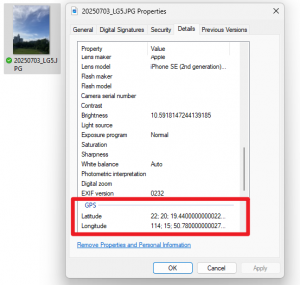
- For Windows users: You can obtain GPS information by right-clicking on the photo, selecting “Properties”, and navigating to the “Details” tab.
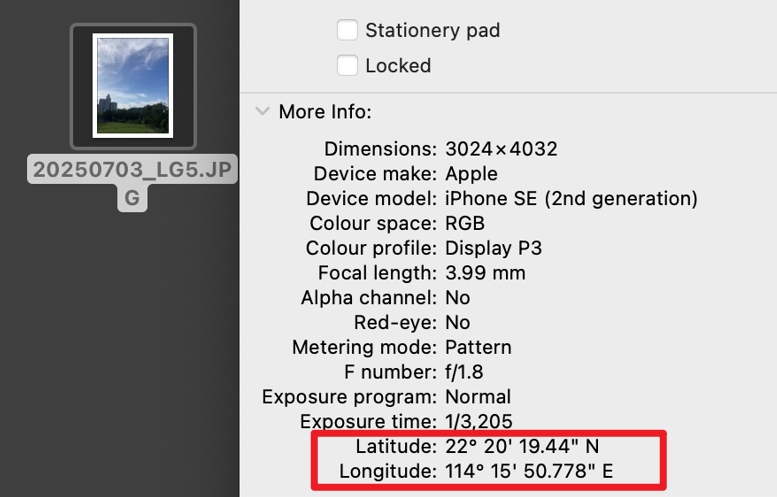
- For Mac users: You can obtain GPS information by right-clicking on the photo, selecting “Get Info”.
Sample photos
In the following demonstration, we will use these three photos as examples:
| Photo 1 | Photo 2 | Photo 3 |
| Taken on 3 July 2025 using a mobile phone at the Terrace in LG5 of the Library. | Taken on 3 July 2025 using a mobile phone at the Atrium. | From the HKUST Digital Images Site. Taken during the Second Congregation on 1994-11-4. |
 |  |  |
Note: For Photos 1 and 2, GPS details are included in their embedded metadata. However, Photo 3 has no attached GPS data because it was taken many years ago. Its date and time metadata are also inaccurate due to the age of the file and how it was processed over time. We will show you how differently they are processed in ArcGIS next.
Pin photos in ArcGIS
1. Click “Analysis” in the top menu tab. 2. Select “Tools” to search for geoprocessing tool. 3. Search and select “GeoTagged Photos to Points“.
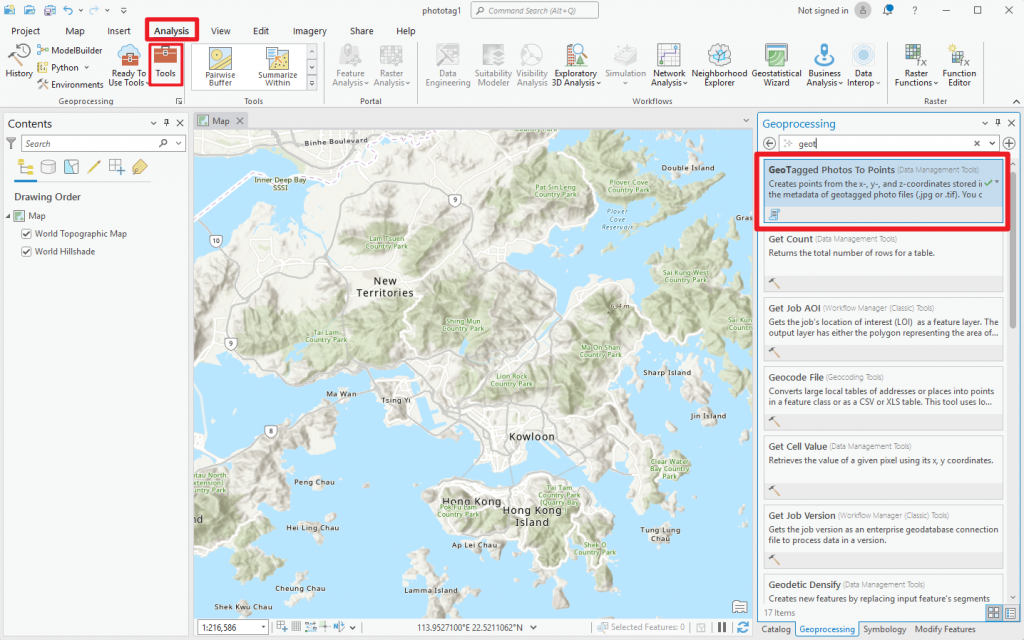
“Analysis” → “Tool” → “GeoTagged Photos to Points” 4. Input the parameters and then click “Run”.
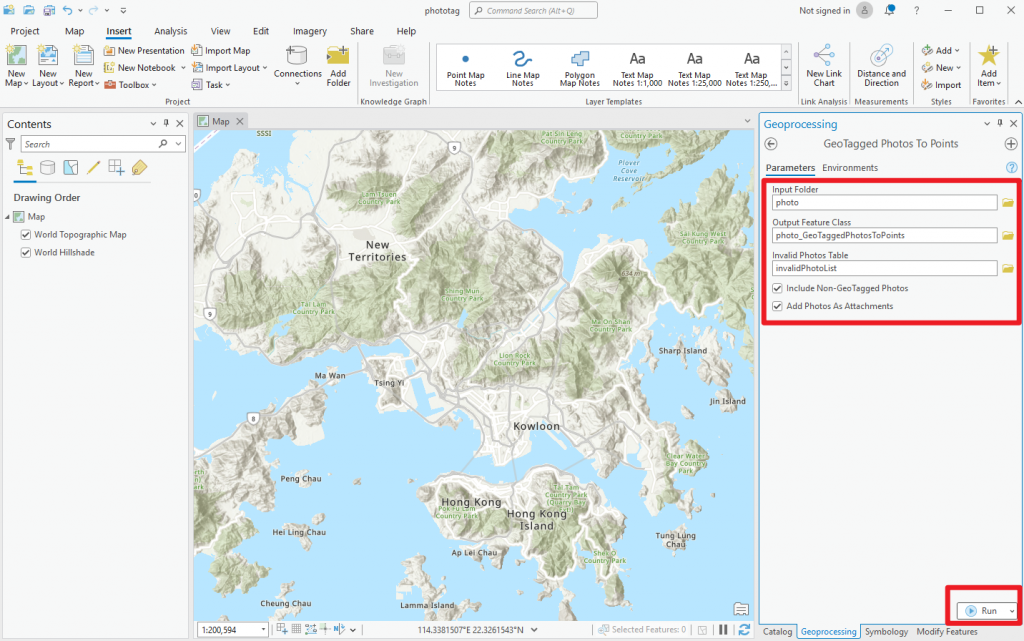
In “GeoTagged Photos to Points”, input parameters and click “Run”.
Tip: Ensure your sample photos are stored in a specific folder (e.g., a "photo" folder on your Desktop). Select that folder in the “Input Folder” parameter. In “GeoTagged Photos to Points”, input parameters and click “Run”. 5. Success! The photos with GPS coordinates data are now automatically pinned on the map.
Managing Photos with Missing GPS Data
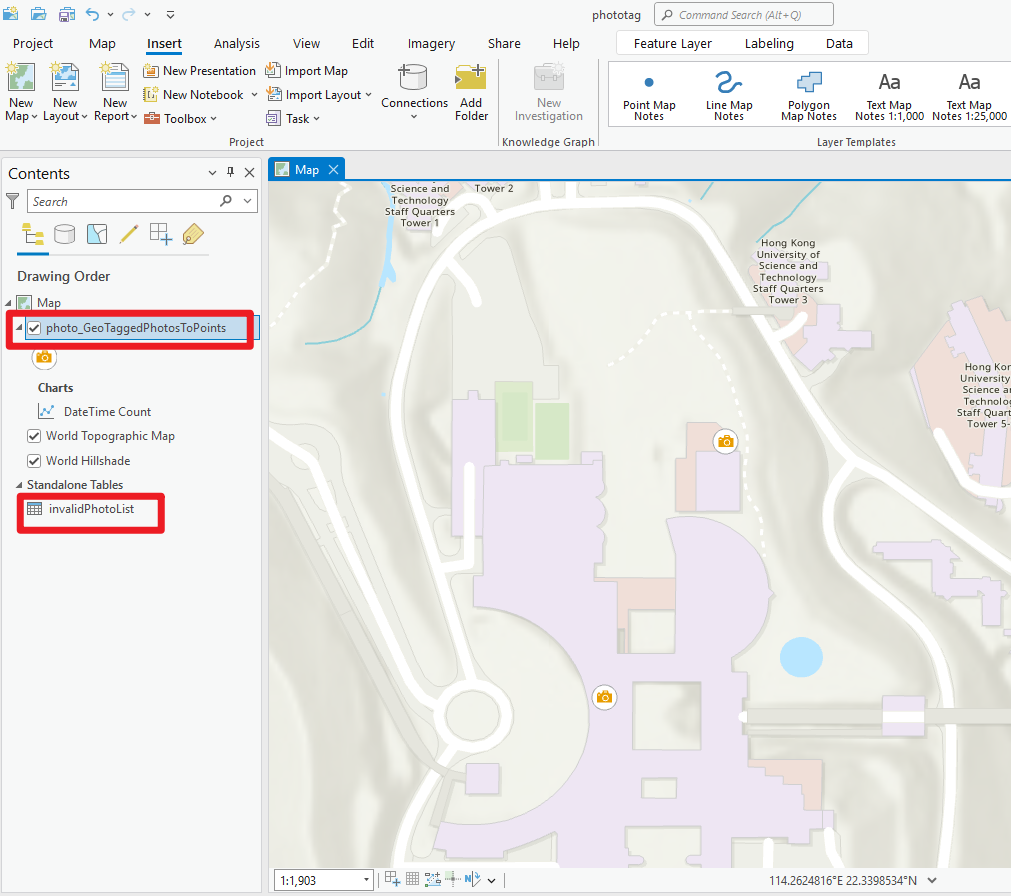
Note that only two points appear on the map. Photo 3 (the archival photo) is not shown due to its lack of embedded GPS data. On the left panel, two new options appeared:
- “photo_GeoTaggedPhotoToPoints”: Contains the information of all photos in the input folder.
- “invalidPhotoList”: A table that list those photos with invalid EXIF metadata or empty or invalid coordinates.
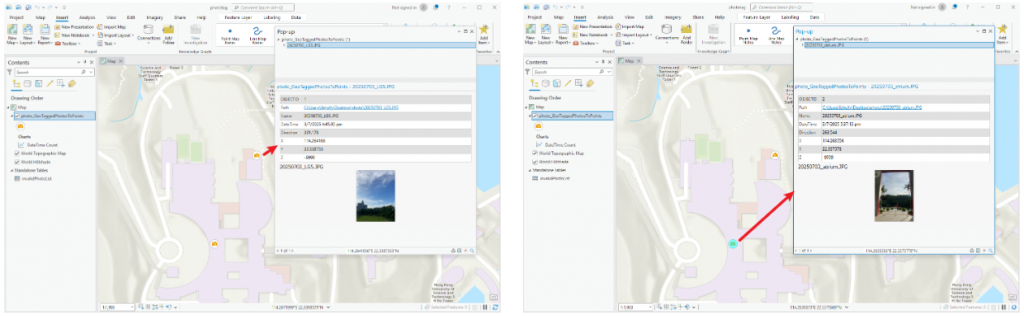
When you click on the pinned point, you can see the details and the corresponding photo of the point.
To view the details of evert photo in the input folder, right click on the “photo_GeoTaggedPhotoToPoints” and select “Attribute Table”. In the Attribute Table, you will see that Photo 3 does not contain x, y, or z coordinate information.
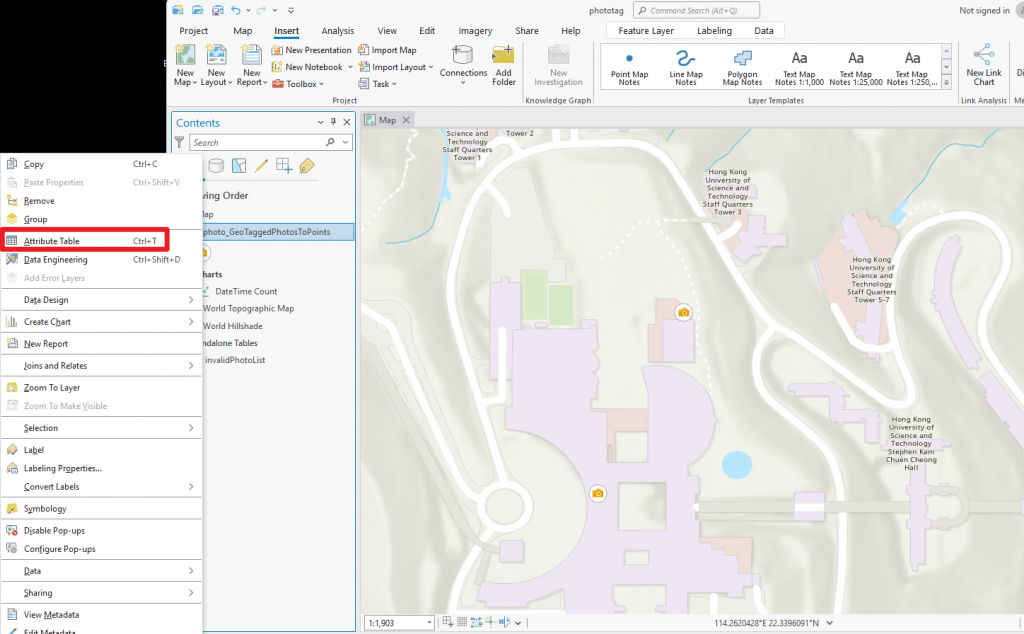
Right click to select “Attribute Table”

Attribute Table
To quickly check which photos do not contain coordinates data, right click the “invalidPhotoList” and select “Open”. This helps you isolate images that require further data enhancement. You can also use the Geoprocessing Tool “Table to Excel” to export this list of identified photos into an Excel format for easier management.
Final Remarks
You’ve now got the basics of using ArcGIS to pin your photos with coordinate data right on the map. No more manual pinning! You can also filter out those photos without coordinates, which could be helpful when dealing with a large number of photos, letting you concentrate on filling the data gaps and enriching the details for those that are missing coordinate data. If you want to dive deeper, check out the ArcGIS guides or visit the website of CSDI’s Geospatial Lab. They occasionally organize free workshops and offer useful online resources. Happy exploring!
